Collect client addresses
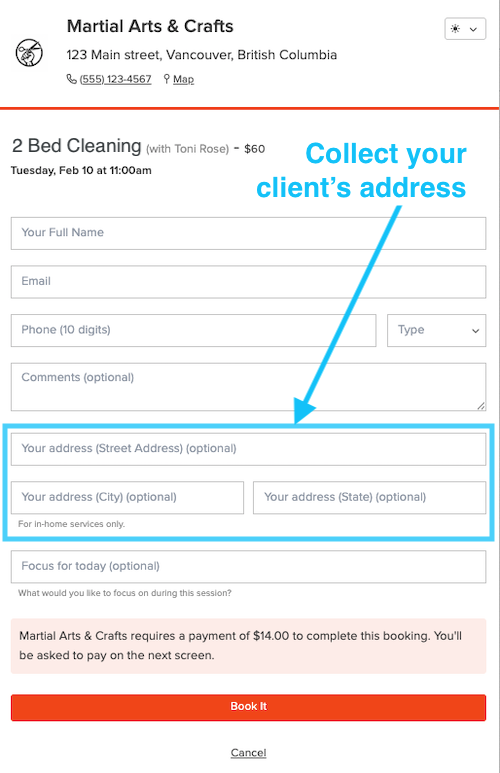
The Address booking form field can be added to your public online booking page and/or your private scheduler. The client address will appear on their appointment, and you can easily click to launch Google maps on your phone for driving directions.
Clients provide their address when booking online:
You'll see it in the app & can get driving directions:
Address collection setup steps:
- Log in to Bookedin web (initial setup must be done on website, not mobile app)
- Go to Settings > Customize
- Under Custom Booking Forms, click Add Custom Form Field and fill in the information. (Screenshot below)
- Field Type: Address
- Field name: Address
- Help text: Please provide your address for your service. (Or something similar to suit your business)
- Frequency: Choose either Ask only once or Ask every time.
- Visibility: Choose either public required, public optional, or private.
- Click Save
Tip!
You can set up unlimited custom form fields and collect any kind of client information. Learn more here.
Comments