Squarespace Booking Calendar
Easily embed an online booking calendar into your Squarespace site. This lets your clients and customers book appointments and pay the up-front payment directly within your website.
- First up, log in to your Bookedin account
- Go to Settings > Integrate in the top menu, on the Integrate screen you'll see some options under Website Booking Calendar.
- First, choose a Font: Proxima Nova, Arial, Verdana, Tahoma, Georgia, Times
- Now choose a Theme: Match Device, Light, Dark
- Then select the Accent Color from the predefined color selection (If you select the Custom color picker, you can either click on the color pad or use the custom bar color or enter a HEX value), then click Choose.
- When you're happy with your settings, hit Get Code. Then you'll see 2 separate boxes with code. Follow the instructions below to paste each piece of code into your website.
- In a new browser window, log in to your Squarespace editor
- For the 1st block of code, follow squarespace's instructions for header code injection here.
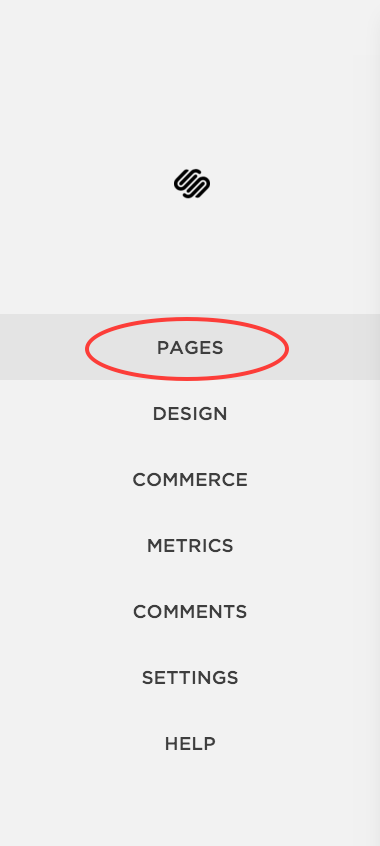
- For the 2nd block of code: Choose the Pages section in the side bar of the editor
- Under Main Navigation, choose an existing page where you would like to embed your calendar, or hit the "+" icon to create a new page.
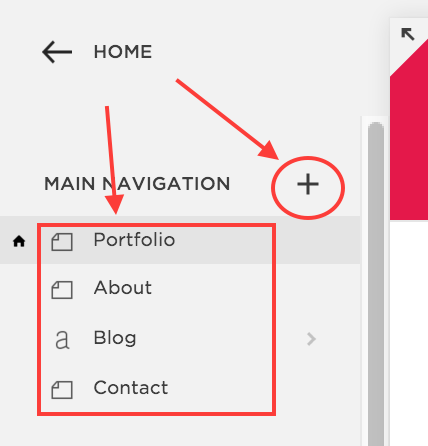
- If you chose to create a new page, give it the name Book Now
- On your new page, click anywhere to edit the page, then add a new content area, and choose the Code block option. See Squarespace's code block article if you need some help on how to do this.
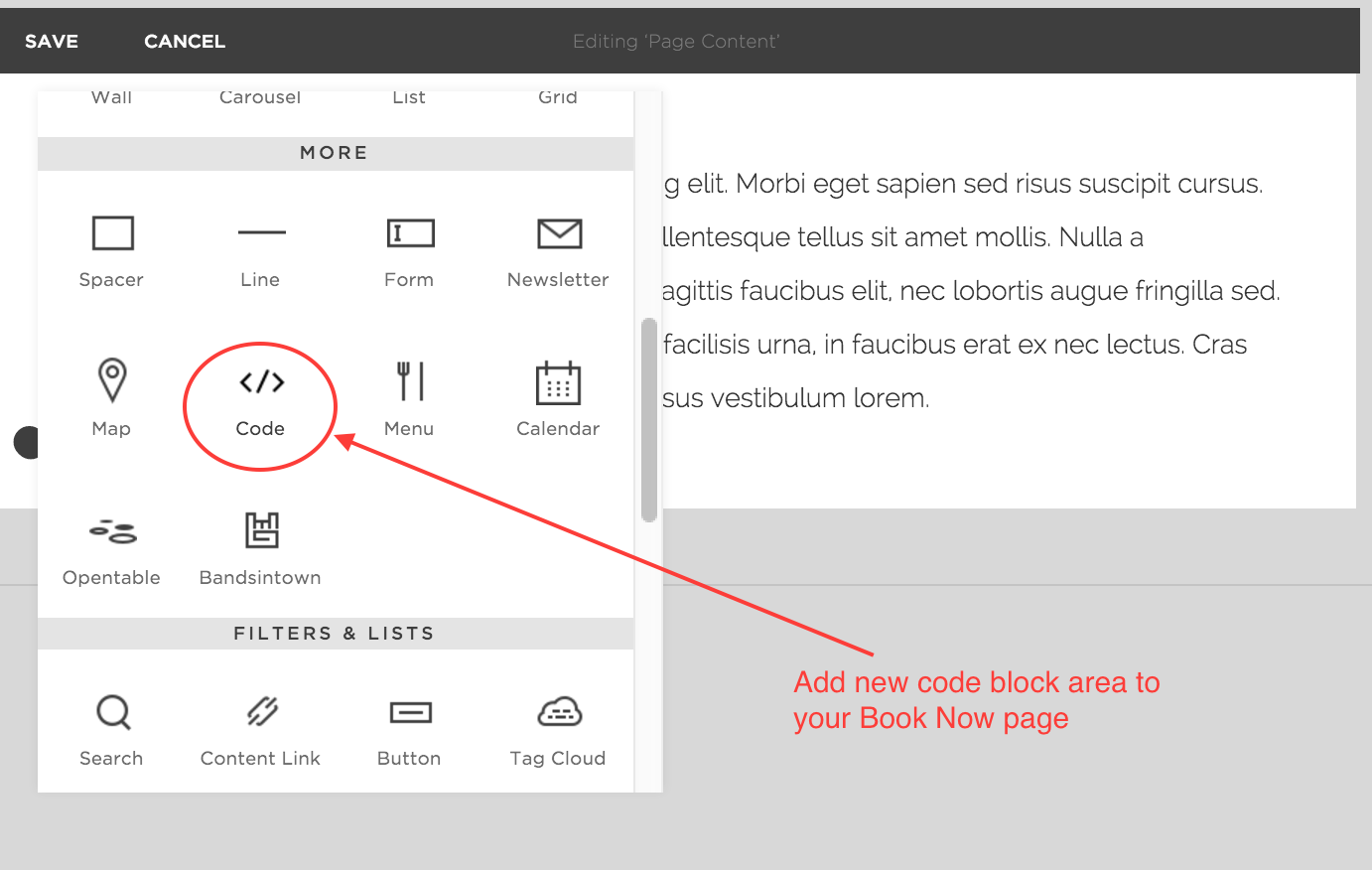
- In the code block you just created, paste in the 2nd block of code from Bookedin, then hit save.
- That's it! You can now view your new booking calendar in your published webpage. Be sure to view your live site to ensure the booking calendar is working properly.
Comments